
Learn how to create a contact list where your subscribers will be stored.
A contact list is where your subscribers are stored in OHWO.
Before sending a campaign, you need to create at least one list.
Example lists:
Customers
Newsletter Subscribers
Website Leads
Event Attendees
Online Shop Buyers
School Announcements
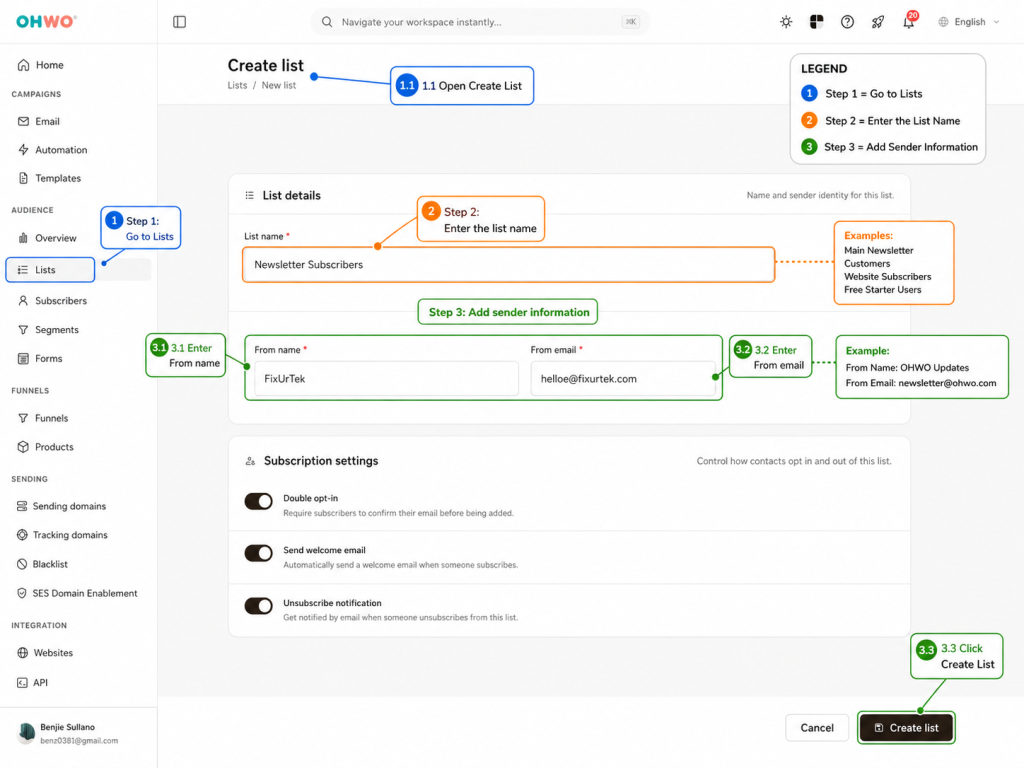
Step 1: Go to Lists
From your OHWO dashboard, go to:
ListsThen click:
Create ListStep 2: Enter the List Name
Choose a simple and clear list name.
Examples:
Main Newsletter
Customers
Website Subscribers
Free Starter Users
Step 3: Add Sender Information
Enter the sender information for this list.
This may include:
- From name
- From email
Example:
From Name: OHWO Updates
From Email: newsletter@ohwo.com
then Click Create List button
Step 4: Add Default Subject or Settings
Some lists may ask for default campaign settings.
You can set these now or update them later.
Step 5: Save the List
Click:
Save
Create
Submit
Your list is now ready.
Best Practices
Use separate lists only when needed.
For example:
Good list structure:
Main Customers
Newsletter Subscribers
Leads
Avoid too many confusing lists like:
List 1
New List
Test List
Old Contacts
My Emails
Important Reminder
Only add contacts who gave permission to receive emails from you.
Permission-based contacts perform better and reduce spam complaints.
Completion Checklist
[ ] List created
[ ] List name is clear
[ ] Sender name added
[ ] Sender email added
[ ] Reply-to email added
[ ] Business details checked